> For the complete documentation index, see [llms.txt](https://shinedezign.gitbook.io/genie/llms.txt). Markdown versions of documentation pages are available by appending `.md` to page URLs; this page is available as [Markdown](https://shinedezign.gitbook.io/genie/overview/theme-settings.md).

# Theme settings

These settings are the theme’s general settings for your **Shopify store.**

## Configure theme settings

Go to **Customize** **theme**.&#x20;

Click on **Theme settings** to access theme-wide settings.&#x20;

Customize the sections by utilizing the settings described below:

## **Favicon**

**Image**: Choose any image for the store library.

## Header

<table><thead><tr><th width="255"></th><th></th></tr></thead><tbody><tr><td>Background</td><td>Select the background color.</td></tr><tr><td>Text</td><td>Select color for the text.</td></tr><tr><td>Hover text</td><td>Select color for the hover text.</td></tr><tr><td>Border</td><td>Select color for the border.</td></tr><tr><td>Icon background</td><td>Select color for the icon's background.</td></tr><tr><td>Icon color</td><td>Select color for the icon.</td></tr><tr><td>Desktop submenu</td><td>Background<br>Select the background color.<br><br>Text<br>Select color for the text.<br><br>Hover<br>Select color for the hover text.<br><br>Border/hover background<br>Select color for the border and background hover.</td></tr><tr><td>Mega menu / mobile menu</td><td><strong>Color scheme</strong><br>Choose any color scheme.</td></tr><tr><td>Category / side reveal</td><td><strong>Color scheme</strong><br>Choose any color scheme.</td></tr></tbody></table>

Menu typography (desktop)

<table><thead><tr><th width="267"></th><th></th></tr></thead><tbody><tr><td>First level menus</td><td><p><strong>Font family</strong><br>Choose the font family from the following options:</p><p>- Heading <br>- Body <br>- Accent <br>(<em><strong>Note</strong>: These fonts can be changed in theme settings>typography.)</em><br><br><strong>Font size</strong><br>Select the heading size from the following options:<br>- XX- large<br>- X- large<br>- Large</p></td></tr><tr><td>Second level menus</td><td><p><strong>Font family</strong><br>Choose the font family from the following options:</p><p>- Heading <br>- Body <br>- Accent <br>(<em><strong>Note</strong>: These fonts can be changed in theme settings>typography.)</em><br><br><strong>Font size</strong><br>Select the heading size from the following options:<br>- XX- large<br>- X- large<br>- Large<br>- Medium<br>- Normal<br>- Small<br>- X-small</p></td></tr><tr><td>Third level menus</td><td><p><strong>Font family</strong><br>Choose the font family from the following options:</p><p>- Heading <br>- Body <br>- Accent <br>(<em><strong>Note</strong>: These fonts can be changed in theme settings>typography.)</em><br><br><strong>Font size</strong><br>Select the heading size from the following options:<br>- XX- large<br>- X- large<br>- Large<br>- Medium<br>- Normal<br>- Small<br>- X-small</p></td></tr><tr><td>Drawer menus (first level)</td><td><p><strong>Font family</strong><br>Choose the font family from the following options:</p><p>- Heading <br>- Body <br>- Accent <br>(<em><strong>Note</strong>: These fonts can be changed in theme settings>typography.)</em><br><br><strong>Font size</strong><br>Select the heading size from the following options:<br>- Heading- medium<br>- Heading- xlarge<br>- Heading- medium<br>- Heading- small<br>- Heading- X-small<br>- Large<br>- Medium<br>- Normal<br>- Small<br>- X-small</p></td></tr></tbody></table>

## Colors

**Default color scheme:** Choose any color scheme to be the default one.&#x20;

<table><thead><tr><th width="253"></th><th></th></tr></thead><tbody><tr><td>Background</td><td>Select the background color.</td></tr><tr><td>Background gradient</td><td>Select gradient for the background color.</td></tr><tr><td>Alternate background</td><td>Select an alternate background color.</td></tr><tr><td>Edge background top</td><td>Select color for the background color of the top corners.</td></tr><tr><td>Edge background bottom</td><td>Select color for the background color of the bottom corners.</td></tr><tr><td>Card background</td><td>Select the card's background color.</td></tr><tr><td>Card Text</td><td>Select color for the card's text.</td></tr><tr><td>Border</td><td>Select color for the border.</td></tr><tr><td>Content</td><td><strong>Heading</strong><br>Select color for the heading text.<br><br><strong>Text</strong><br>Select color for the text.<br><br><strong>Link</strong><br>Select color for the links.<br><br><strong>Link hover</strong><br>Select color for the links hover.<br><br><strong>Highlight color</strong><br>Select color for the highlight elements like product prices.</td></tr><tr><td>Image</td><td><strong>Background</strong><br>Select the image's background color.<br><br><strong>Overlay gradient</strong><br>Select the button's gradient background color.<br><em>(<strong>Note</strong>: It replaces the solid background col</em><br><br><strong>Overlay solid</strong><br>Select the image's overlay background color.<br><br><strong>Overlay heading</strong><br>Select the image's overlay heading color.<br><br><strong>Overlay text</strong><br>Select the image's overlay text color.<br><br><em>(Note: The image overlay colors work for the images, which are mandatory for the sections.)</em></td></tr><tr><td>Form</td><td><strong>Background</strong><br>Select the input field's background color.<br><br><strong>Text</strong><br>Select the input field's text color.<br><br><strong>Border</strong><br>Select the input field's border color.</td></tr><tr><td>Primary &#x26; Secondary button</td><td><strong>Background</strong><br>Select the button background color.<br><br><strong>Text</strong><br>Select the button label color.<br><br><strong>Border</strong><br>Select the button border's color.<br><br><strong>Background hover</strong><br>Select the button's background color on hover.<br><br><strong>Effect hover color</strong><br>Select the animated button's  hover effect color.<br><br><strong>Text hover</strong><br>Select the button's text color on hover.<br><br><strong>Border hover</strong><br>Select the border hover color.</td></tr><tr><td>Product card</td><td><strong>Background</strong><br>Select the card's background color.<br><br><strong>Text</strong><br>Select color for the card's text.<br><br><strong>Border</strong><br>Select the card's border color.</td></tr><tr><td>Slider arrow/dots</td><td><strong>Background</strong><br>Select the slider arrow's background color.<br><br><strong>Color</strong><br>Select the slider arrow's text color.<br><br><strong>Border</strong><br>Select the border color.</td></tr><tr><td>Marquee</td><td><strong>Text</strong><br>Select color for the marquee's text.<br><br><strong>Outline text</strong><br>Select color for the marquee's outlined text.</td></tr><tr><td>Icons</td><td><strong>Background</strong><br>Select the icon's background color.<br><br><strong>Text</strong><br>Select color for the icon.</td></tr></tbody></table>

**Popup/Drawers/Menus**

**Badges**

<table><thead><tr><th width="258"></th><th></th></tr></thead><tbody><tr><td>Sale text</td><td>Select any text color for sale badges.</td></tr><tr><td>Sale background</td><td>Select any background color for sale badges.</td></tr><tr><td>Soldout text</td><td>Select any text color for sold out badges.</td></tr><tr><td>Soldout background</td><td>Select any background color for sold out badges.</td></tr><tr><td>Preorder text</td><td>Select any text color for preorder badges.</td></tr><tr><td>Preorder background</td><td>Select any background color for preorder badges.</td></tr><tr><td>Discount text</td><td>Select any text color for discount badges.</td></tr><tr><td>Discount background</td><td>Select any background color for discount badges.</td></tr><tr><td>Custom text</td><td>Select any text color for custom badges.</td></tr><tr><td>Custom background</td><td>Select any background color for custom badges.</td></tr></tbody></table>

**Success/Error messages**

<table><thead><tr><th width="254"></th><th></th></tr></thead><tbody><tr><td>Success text</td><td>Select any text color for success text.</td></tr><tr><td>Error text</td><td>Select any text color for error text.</td></tr><tr><td>Warning text</td><td>Select any text color for warning text.</td></tr></tbody></table>

## Typography

This setting allows customizing fonts.

<table data-header-hidden><thead><tr><th width="260"></th><th></th><th data-hidden></th></tr></thead><tbody><tr><td>Headings</td><td><p><strong>Font</strong> </p><p>Select the font of the heading text.</p><p> <br><strong>Line height</strong> </p><p>Adjust the line height for headings used in all sections.<br><br><strong>Font size scale</strong> </p><p>Adjust the range bar to set the font size scale.<br><br><strong>Letter spacing</strong><br>Choose the letter spacing from the available list of options. </p></td><td></td></tr><tr><td>Body</td><td><p><strong>Font</strong> </p><p>Select the font of the body text.</p><p> <br><strong>Line height</strong> </p><p>Adjust the line height for headings used in all sections.<br><br><strong>Font size scale</strong> </p><p>Adjust the range bar to set the font size scale.<br><br><strong>Letter spacing</strong><br>Choose the letter spacing from the available list of options.</p></td><td></td></tr><tr><td>Accents</td><td><p><strong>Font</strong> </p><p>Select the font of the accents text.</p><p> <br><strong>Line height</strong> </p><p>Adjust the line height for headings used in all sections.<br><br><strong>Font size scale</strong> </p><p>Adjust the range bar to set the font size scale.<br><br><strong>Letter spacing</strong><br>Choose the letter spacing from the available list of options.</p></td><td></td></tr></tbody></table>

## Layout&#x20;

<table><thead><tr><th width="188"></th><th></th></tr></thead><tbody><tr><td>Container width</td><td>Choose the container width from the following options:<br>- Extra small<br>- Small<br>- Regular<br>- Edges gap</td></tr><tr><td>Animations</td><td>Enable heading animations<br>Select this checkbox to enable the animations on headings.<br><br>Enable card animations<br>Select this checkbox to enable the animations on cards.</td></tr><tr><td>Styling </td><td>Card radius<br>Adjust the range bar to select the border radius of cards.<br><br>Form radius<br>Adjust the range bar to select the border radius of form inputs.</td></tr><tr><td>Navigation arrows</td><td>Style<br>Choose style from:<br>- Round<br>- Star</td></tr></tbody></table>

## Buttons

<table><thead><tr><th width="216"></th><th></th></tr></thead><tbody><tr><td>Font family</td><td><p>Choose the button's font family from the following options:</p><p>- Heading <br>- Body <br>- Accent <br>(<em><strong>Note</strong>: These fonts can be changed in theme settings>typography.)</em></p></td></tr><tr><td>Style</td><td>Choose the button style from the following options:<br>- Solid<br>- Outline<br>- Solid animated <br>- Outline animated</td></tr><tr><td>Size</td><td>Select from the following options to determine the button size.<br>- Small<br>- Regular<br>- Large</td></tr><tr><td>Text transform</td><td>Choose text transform from:<br>- Default<br>- Uppercase<br>- Lowercase<br>- Capitalize</td></tr><tr><td>Corner radius</td><td>Adjust the range bar to select the corner radius of the buttons.</td></tr></tbody></table>

### Variant pills

<table><thead><tr><th width="235"></th><th></th></tr></thead><tbody><tr><td>Border</td><td>Variant pills are one way of displaying your product variants.<br><strong>Thickness</strong><br>Adjust the range bar to select the thickness of borders.<br><br><strong>Corner radius</strong><br>Adjust the range bar to select the corner radius of pills.</td></tr></tbody></table>

## Product

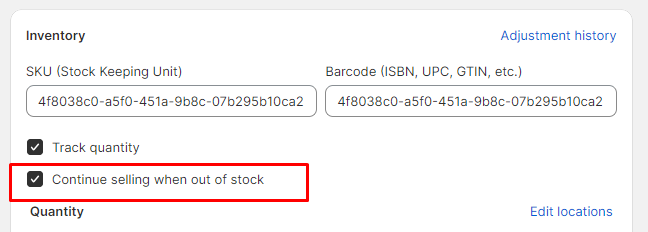
<table><thead><tr><th width="202"></th><th></th></tr></thead><tbody><tr><td>Enable preorder</td><td>Select the checkbox if you want to allow users to pre-book any product. For this option, you must ensure that the "Continue Selling Out of Stock" is checked for a product that is not in stock at that moment. This setting can be checked from the Shopify products page.<br><br><img src="/files/FznVI3x8fuqQl5p5cgpx" alt=""></td></tr></tbody></table>

## Product cards

<table><thead><tr><th width="215"></th><th></th></tr></thead><tbody><tr><td>Content style</td><td>Choose the style from below options:<br>- Inside<br>- Outside</td></tr><tr><td>Desktop price position</td><td>Choose the price position for outside style for desktop view, from below options:<br>- Same row<br>- Next row</td></tr><tr><td>Quick view style</td><td>Choose the style from below options:<br>- Icon<br>- None</td></tr><tr><td>Icon appearance</td><td>Choose the quick view visibility from below options:<br>- Always<br>- On hover</td></tr><tr><td>Font family</td><td><p>Choose the font family from the following options:</p><p>- Heading <br>- Body <br>- Accent <br>(<em><strong>Note</strong>: These fonts can be changed in theme settings>typography.)</em></p></td></tr><tr><td>Show second image on hover</td><td>Select this checkbox to show the product's second image on hover.</td></tr><tr><td>Show vendor</td><td>Select the checkbox to show the product vendor name. </td></tr><tr><td>Swatch</td><td><strong>Show swatch</strong><br>Select this checkbox to show swatches in the product grid.<br><br><strong>Color swatch style</strong><br>Choose the swatch type from the following options:<br>- Category meta-fields<br>- Variant image<br><em>(<strong>Note</strong>: For category meta-fields colors, please go through</em> <a href="https://help.shopify.com/en/manual/custom-data/metafields/category-metafields/using-category-metafields"><em>doc</em></a><em>)</em><br><br><strong>Hide compare price</strong><br>Select this checkbox to hide the compare price in the product cards.<br><br><strong>Saving price options</strong><br>Choose the saving price options from:<br>- None<br>- Amount off<br>- Percentage off<br><br><strong>Corner radius</strong><br>Adjust the range bar to determine the radius in the grids.</td></tr></tbody></table>

### Swatches

<table><thead><tr><th width="235"></th><th></th></tr></thead><tbody><tr><td>Size options trigger</td><td>Add the product option name that that holds the size. E.g.: Size, Taille, etc.</td></tr><tr><td>Color options trigger</td><td>Add the product option name that holds the colors. E.g.: Color, Colour, Material, etc.</td></tr><tr><td>Custom colors</td><td>Enter the custom color codes of the swatches using the hex colors. <strong>To add a color code with the option name:</strong> <br><em>For example:</em> Chilli: #ff0000 <br><em>Here the 'Chilli' is the variant name.</em> For hex color codes, refer to <a href="https://htmlcolorcodes.com/">codes.</a> <br><br><strong>To add the swatch image:</strong> Upload image in Content>Files. Add the image name with extension. This will link the option name with the image.</td></tr></tbody></table>

### Drawers

<table><thead><tr><th width="253"></th><th></th></tr></thead><tbody><tr><td>Color scheme</td><td>Select any color scheme defined in the theme settings>Colors>Schemes.</td></tr><tr><td>Overlay background</td><td>Choose any color for the overlay, which appears on opening the popups, drawers or menus.</td></tr><tr><td>Enable blur background</td><td>Select the checkbox to make the background blurry.</td></tr><tr><td>Overlay opacity</td><td>Adjust the range bar to determine the overlay color's opacity.</td></tr></tbody></table>

### Badges

<table><thead><tr><th width="267"></th><th></th></tr></thead><tbody><tr><td>Badges</td><td><p><strong>Show 'Sale' badge</strong><br>Select this checkbox to show the 'Sale' badge based on the conditions selected below.<br>(<em><strong>Note</strong>: The sale badge shows on the products where the compare price is defined from the Shopify product side.)</em><br><br><strong>Show 'Sold out' badge</strong><br>Select this checkbox to show the ' Sold out ' badge.<br><br><strong>Show 'Preorder' badge</strong><br>Select this checkbox to show the preorder badges on the product grids <br><em>(<strong>Note</strong>: This preorder shows for the products whose ' Continue selling out of stock' is checked from the admin product side.)</em></p><p></p><p><img src="/files/5aB4PauRKxPvDhvdOph9" alt=""><br></p></td></tr><tr><td>Custom badge</td><td><strong>Product tags</strong><br>Add custom labels in the product tags and then type those in this field. The tags will start showing on the storefront.<br><br><strong>Custom badge text</strong><br>Type the badge text to display.</td></tr></tbody></table>

## Social media

<table><thead><tr><th width="234"></th><th></th></tr></thead><tbody><tr><td>Social accounts</td><td>These options are to show the merchant's social networking pages.<br><br><strong>Facebook</strong><br>Enter the Facebook account link.<br><br><strong>X (formerly Twitter)</strong><br>Enter the Twitter account link.<br><br><strong>Instagram</strong><br>Enter the Instagram account link.<br><br><strong>YouTube</strong><br>Enter the YouTube account link.<br><br><strong>TikTok</strong><br>Enter the TikTok account link.<br><br><strong>Snapchat</strong><br>Enter the Snapchat account link.<br><br><strong>Pinterest</strong><br>Enter the Pinterest account link.<br><br><strong>Tumblr</strong><br>Enter the Tumblr account link.<br><br><strong>Vimeo</strong><br>Enter the Vimeo account link.</td></tr><tr><td>Sharing options</td><td>These options are useful to share the product, articles on the social networking sites.<br><br><strong>Share on Facebook</strong><br>Select this checkbox to share on Facebook.<br><br><strong>Tweet on X (formerly Twitter)</strong><br>Select this checkbox to share on X (formerly Twitter).<br><br><strong>Pin on Pinterest</strong><br>Select this checkbox to share on Pinterest.<br><br><strong>Share on Telegram</strong><br>Select this checkbox to share on Telegram.<br><br><strong>Share on WhatsApp</strong><br>Select this checkbox to share on Email.<br><br><strong>Share on Email</strong><br>Select this checkbox to share on Email.</td></tr></tbody></table>

## Search/ Search drawer

<table><thead><tr><th width="211"></th><th></th></tr></thead><tbody><tr><td>Style</td><td>Choose the search style from the following options:<br>- Page<br>- Drawer</td></tr><tr><td>Search bar placeholder</td><td>Choose the drawer style from the following options:<br>- Fullscreen<br>- Half screen</td></tr><tr><td>Trending searches</td><td><strong>Show trending searches</strong><br>Select this checkbox to show the trending search items.<br><br><strong>Heading</strong><br>Enter the heading text.<br><br><strong>Trending search</strong><br>Enter the trending search items text.</td></tr><tr><td>Popular categories</td><td>Show popular categories<br>Select this checkbox to show the trending search items.<br><br><strong>Heading</strong><br>Enter the heading text.<br><br><strong>Select collections</strong><br>Choose the collections list from the store.</td></tr><tr><td>Suggestions</td><td><strong>Enable suggestions</strong> <br>Select this checkbox to show the suggestions.<br><br><strong>Heading</strong><br>Enter the heading text.<br><br><strong>Select products</strong><br>Choose the products list from the store.</td></tr><tr><td>Search results</td><td><strong>Search behavior</strong><br>Choose from:<br>- Products only<br>- Product and pages<br>- Product and articles<br>- Product, articles and pages<br>- All content<br><br><strong>Image ratio</strong><br>Choose from image's ratio from the following options:<br>- Auto<br>- Square<br>- Landscape<br>- Portrait<br><br><strong>Color scheme</strong><br>Select any color scheme defined in the theme settings>Colors>Schemes.</td></tr></tbody></table>

### Cart/Cart drawer

<table><thead><tr><th width="224"></th><th></th></tr></thead><tbody><tr><td>Style</td><td>Choose the cart style from the following options: <br>- Drawer <br>- Page<br>- Popup notification.</td></tr><tr><td>Cart drawer</td><td><strong>Enable cart notes</strong><br>Select this checkbox to show the cart notes in the cart drawer.<br><br><strong>Show estimate shipping</strong><br>Select this checkbox to show estimate shipping in the cart drawer.<br><br>Cart recommendations<br><strong>Heading</strong><br>Enter the heading text.<br><br><strong>Products list</strong><br>Choose the products list.<br><br><strong>Color scheme</strong><br>Select any color scheme defined in the theme settings>Colors>Schemes.</td></tr></tbody></table>

### Cart

<table><thead><tr><th width="241"></th><th></th></tr></thead><tbody><tr><td>Shipping bar</td><td><p><em>(Note: This feature only works with a shipping method. If you're using multiple shipping methods, it might show false values to the customer.)</em><br><br><strong>Enable shipping bar</strong><br>Select this checkbox to enable/disable the shipping bar on the cart drawer.<br><br><strong>Animation style</strong><br>Choose from:<br>- Truck<br>- Duck<br>- None<br><br><strong>Minimum shipping price</strong><br>Type any price for providing free shipping to the customers. After reaching this price, the user will be shown a success message.</p><p><em>(Note: Users must write a number, no letters or special characters.)</em><br><br><strong>Message</strong><br>Type any relevant message to notify users about the amount saved in this field.</p><p><em>(Note: Use ||amount|| to display the amount within the message.)</em><br><br><strong>Success message</strong><br>Enter text to show the success message after the user has reached the minimum shipping price.</p></td></tr><tr><td>Empty cart details</td><td><strong>Heading</strong><br>Enter the heading text.<br><br><strong>Description</strong><br>Enter description text to show in the cart drawer.<br><br><strong>Button label</strong><br>Enter the button label e.g. <strong>Continue shopping</strong><br><br><strong>Button link</strong><br>Enter the link to redirect the button.<br><br><strong>Style</strong><br>Choose the button style from the following options:<br>- Global<br>- Solid<br>- Outline<br>- Solid animated <br>- Outline animated<br>- Link<br><br><strong>Size</strong><br>Select from the following options to determine the button size.<br>- Global<br>- Small<br>- Regular<br>- Large</td></tr></tbody></table>

## Internationalization

<table><thead><tr><th width="226"></th><th></th></tr></thead><tbody><tr><td>Enable language selector</td><td>Select this checkbox to show the language selector.</td></tr><tr><td>Enable country/region selector</td><td>Select this checkbox to show the country/region selector.</td></tr></tbody></table>

## Scroll to top

<table><thead><tr><th width="230"></th><th></th></tr></thead><tbody><tr><td>Enable</td><td>Select this checkbox to enable the scroll to top icon.</td></tr><tr><td>SVG code</td><td>Add the SVG icon code.</td></tr><tr><td>Horizontal position</td><td>Choose the icon position from the following options:<br>- Left<br>- Center<br>- Right</td></tr><tr><td>Vertical position</td><td>Adjust the range bar to determine the vertical position of this icon.</td></tr><tr><td>Colors</td><td><strong>Background</strong><br>Choose any color for the icon background.<br><br><strong>Icon</strong><br>Choose any color for the icon.<br><br><strong>Border</strong><br>Choose any color for the border.</td></tr></tbody></table>

### SEO

<table><thead><tr><th width="248"></th><th></th></tr></thead><tbody><tr><td>Remove the collection portion from product URLs for better SEO.</td><td>Select this checkbox to remove the collection portion from the product URL's.</td></tr></tbody></table>


---

# Agent Instructions
This documentation is published with GitBook. GitBook is the documentation platform designed so that both humans and AI agents can read, navigate, and reason over technical content effectively. Learn more at gitbook.com.

## Querying This Documentation
If you need additional information that is not directly available in this page, you can query the documentation dynamically by asking a question.

Perform an HTTP GET request on the current page URL with the `ask` query parameter, and the optional `goal` query parameter:

```
GET https://shinedezign.gitbook.io/genie/overview/theme-settings.md?ask=<question>&goal=<endgoal>
```

`ask` is the immediate question: it should be specific, self-contained, and written in natural language.
`goal` is optional and describes the broader end goal you are ultimately trying to accomplish on behalf of the user. GitBook uses it to tailor the answer towards what is most useful for that goal.

The response will contain a direct answer to the question and relevant excerpts and sources from the documentation.

Use this mechanism when the answer is not explicitly present in the current page, you need clarification or additional context, or you want to retrieve related documentation sections.